Viewing & Navigation
Help and discovery
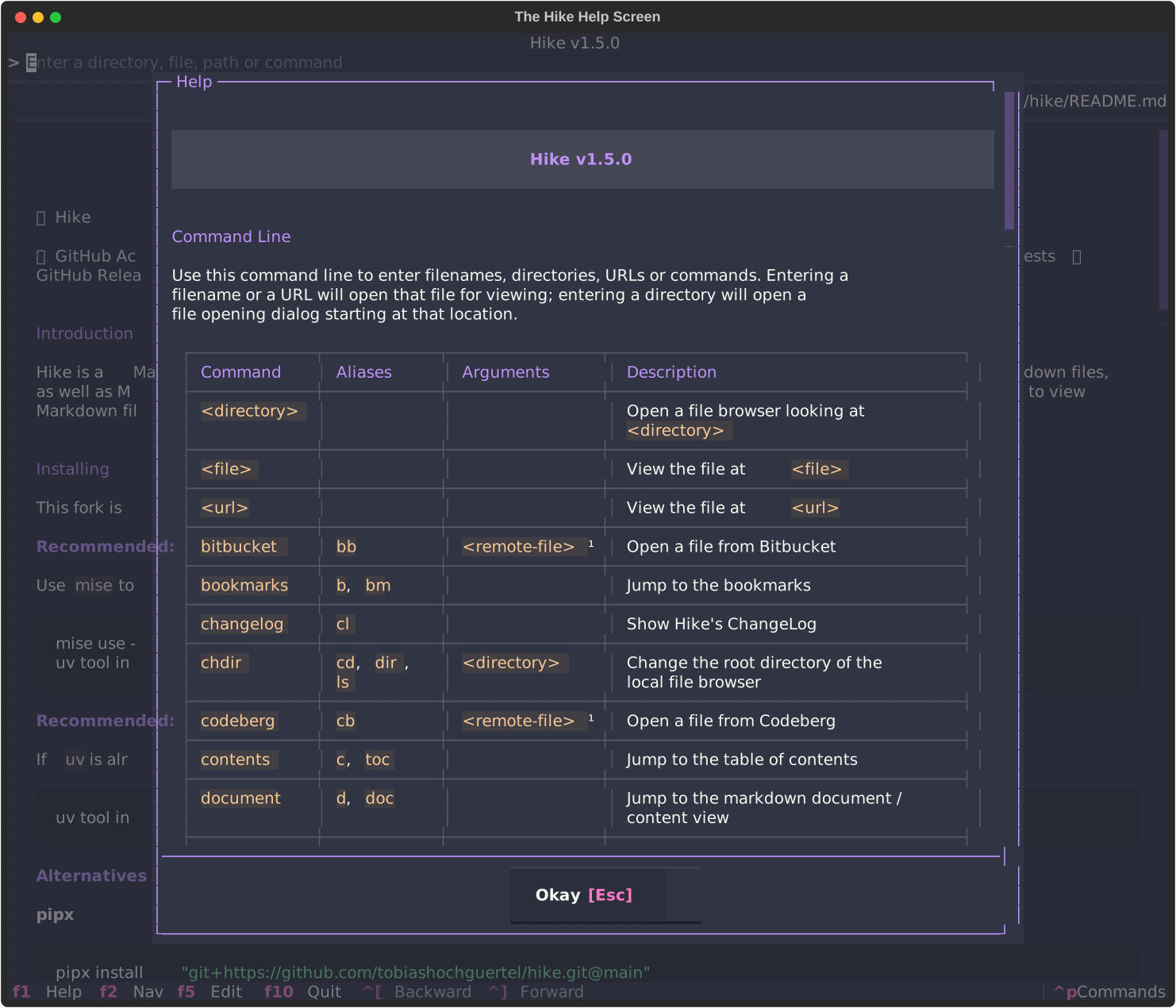
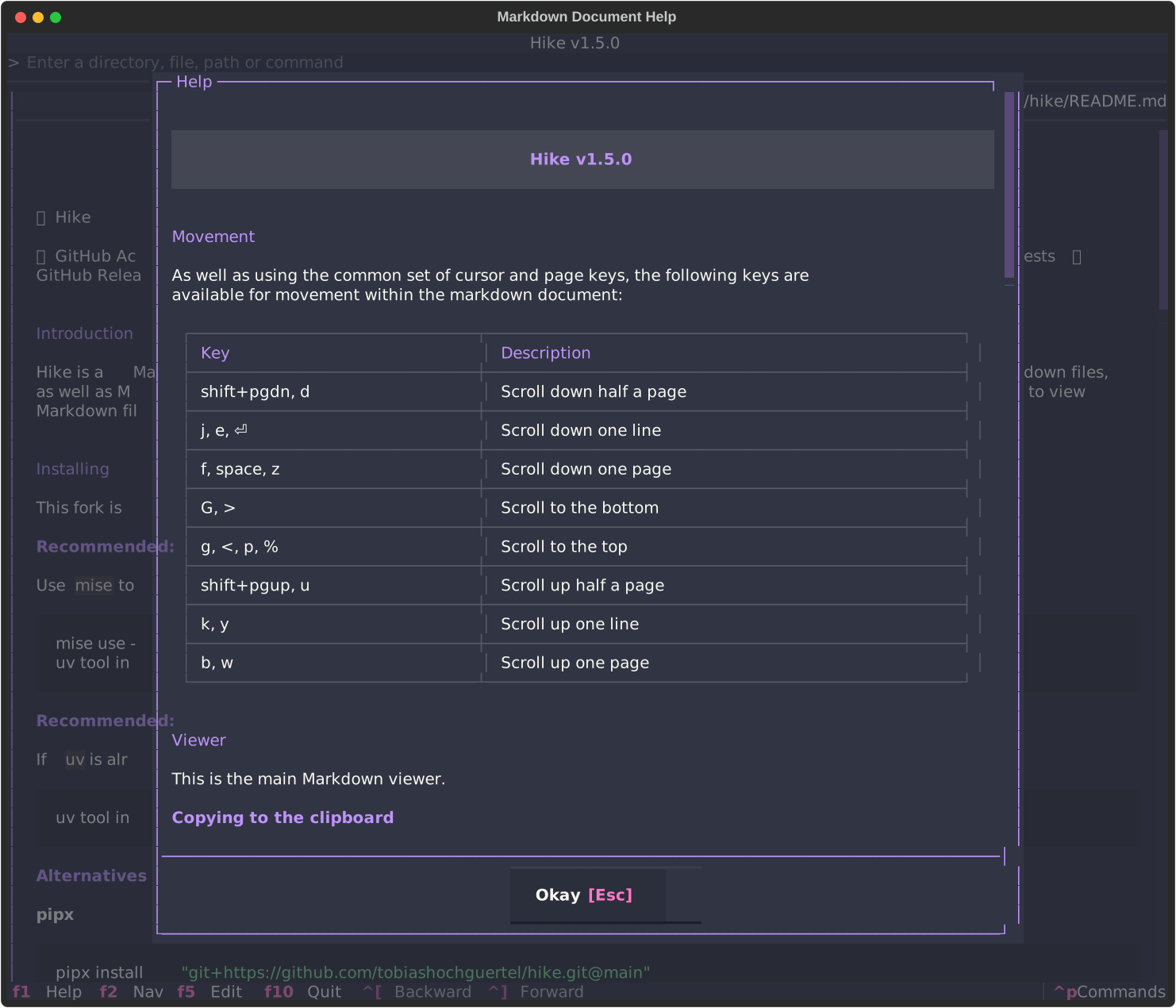
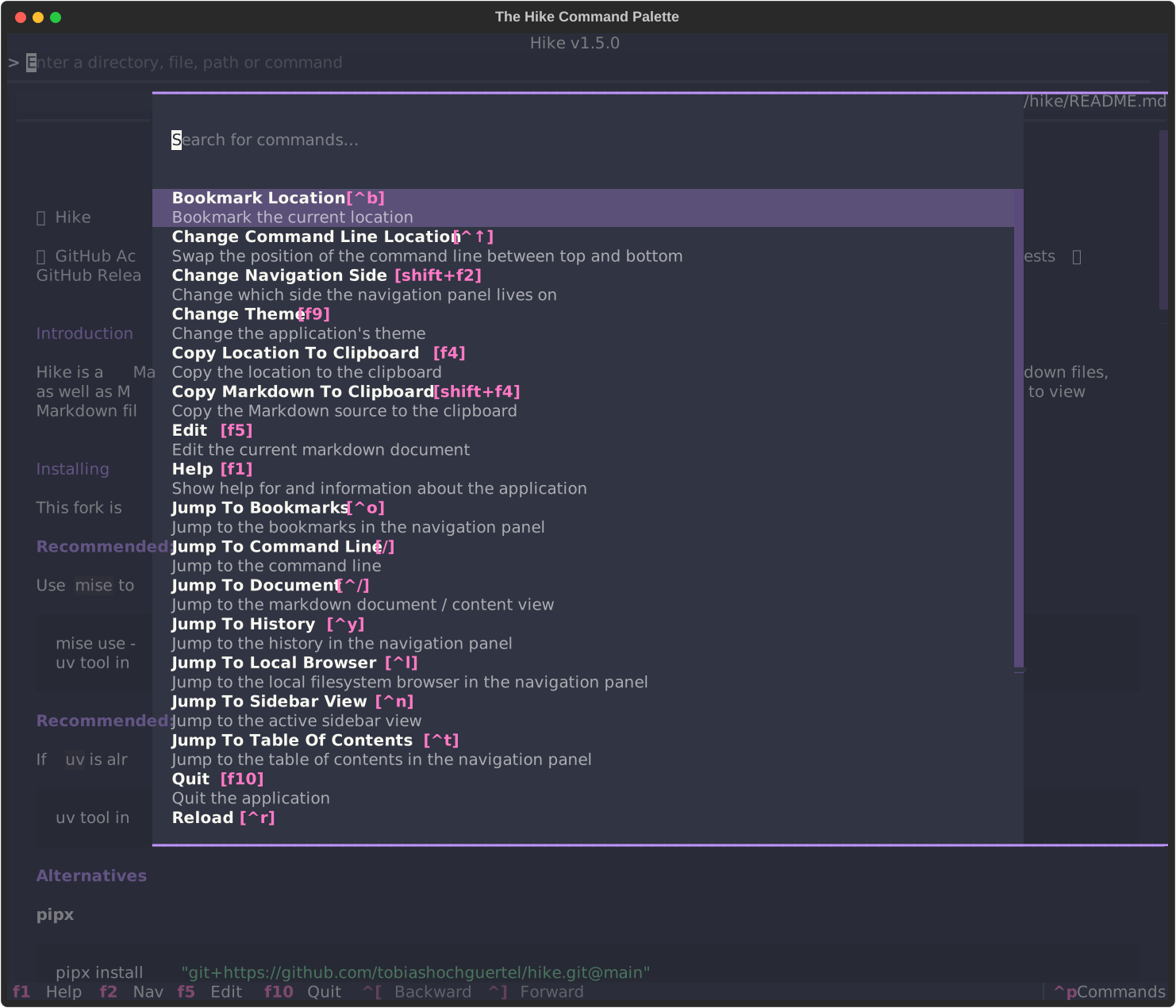
Section titled “Help and discovery”The fastest way to learn Hike from inside the app is to use the built-in help screen and command palette.
Responsive navigation
Section titled “Responsive navigation”On narrower terminals Hike can switch to a single-pane layout automatically. The practical movement model is:
- Ctrl+N jumps to the active sidebar view
- Ctrl+G returns to the Markdown content
- F2 still toggles navigation visibility
When the terminal grows wide enough again, Hike restores the normal split view.
Local browser behavior
Section titled “Local browser behavior”The local browser now supports two modes:
- tree — the original hierarchical directory tree
- flat list — a relative-path list optimized for quick scanning
Use Ctrl+Shift+L or m while the local browser
has focus to toggle modes.
In flat-list mode:
- selecting a directory changes the local browser root
- empty directories without visible Markdown descendants are hidden
../appears when a parent directory is available- Backspace moves to the parent directory directly
Startup selection
Section titled “Startup selection”When Hike starts from a directory, it can auto-open a preferred file and select it in the sidebar. The default order is:
INDEX.mdREADME.md- the first visible Markdown file in local-browser order
You can override that order in the configuration file. See Configuration → File Browser & Startup.